
If you are using Zoom as your virtual meeting provider, follow the steps below to ensure your Zoom room works smoothly with Penji.
Finding Your Personal Zoom Room
Go to Zoom.us and sign in
(This may be a university-provided account or a personal Zoom account.)Navigate to Meetings → Personal Room
Depending on your Zoom version, you may see slightly different terminology:
| Zoom Term | May Also Appear As |
|---|---|
| Personal Meeting ID | Personal Room ID |
| Personal Meeting Code | Host Key |
| Personal Link | Personal Meeting URL / Invite Link |
Your goal is for the Join URL to already include ?pwd=... at the end.
Required Zoom Settings
1. Edit Your Personal Room
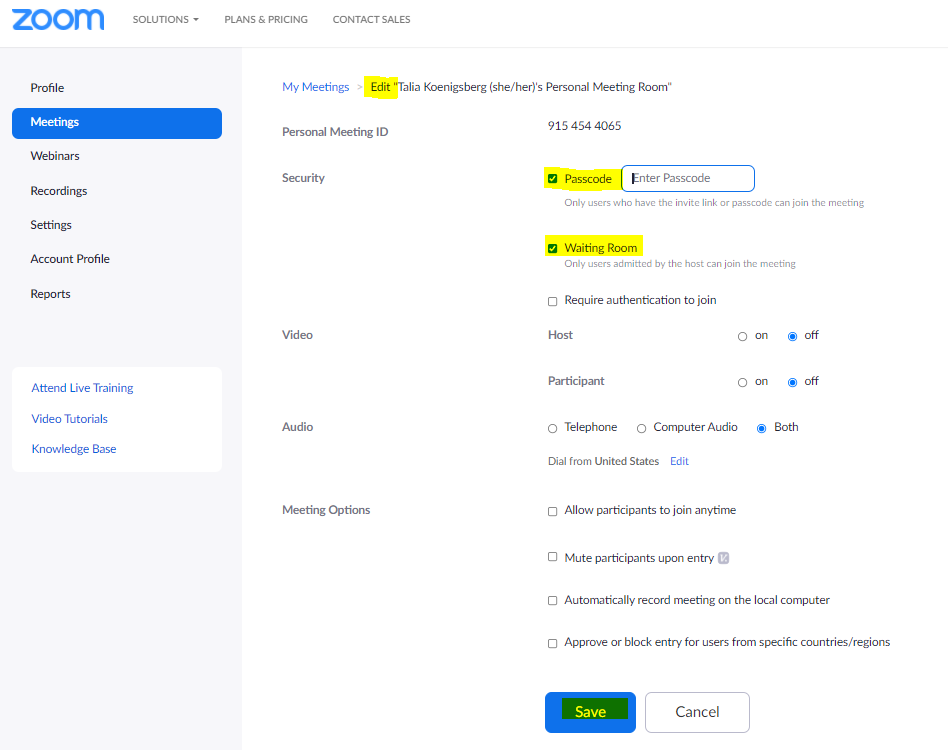
From Meetings → Personal Room, click Edit and confirm:
✅ Passcode is enabled
⬜ Waiting Room is enabled or disabled (your preference)
Save your changes.
2. Zoom Account Settings
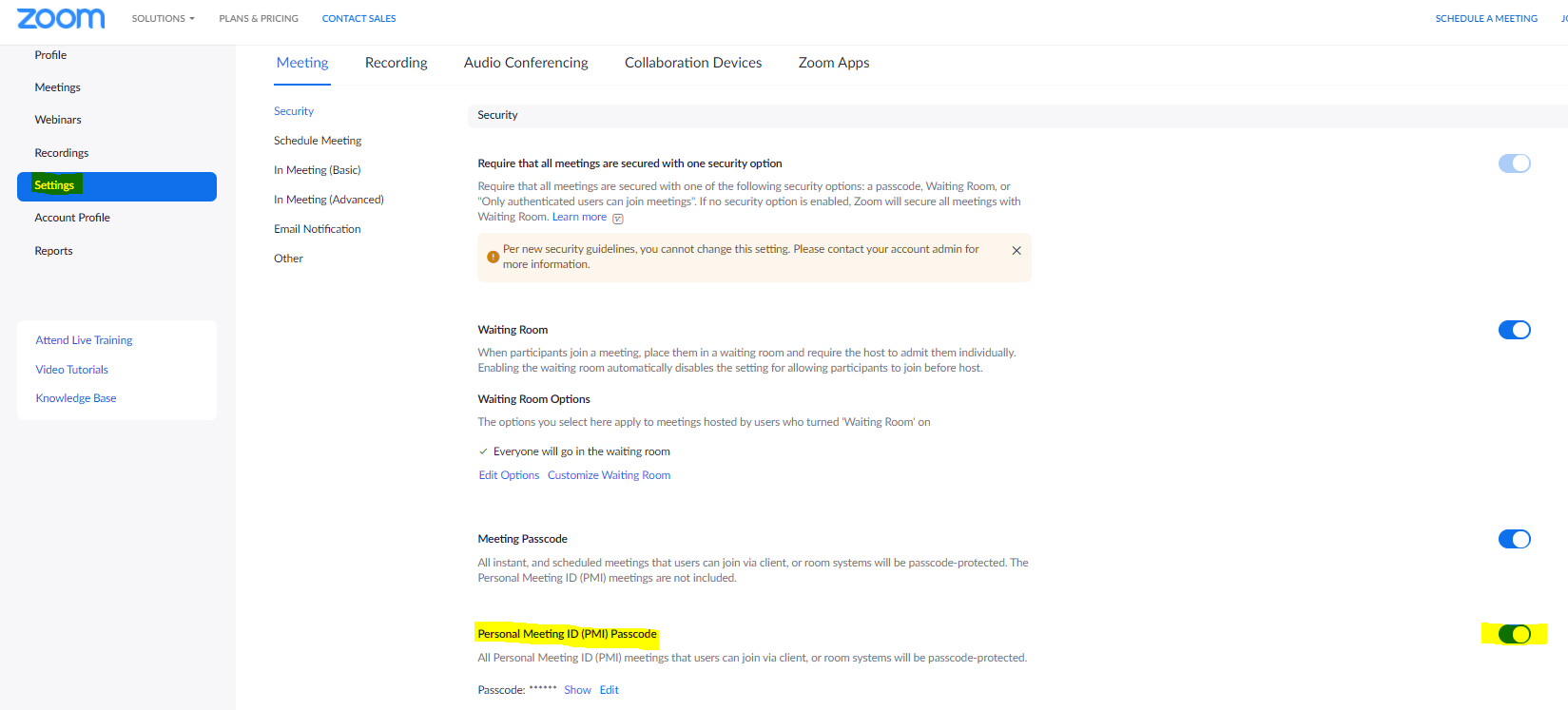
Go to Settings (left-hand menu) and ensure the following are turned ON:
Personal Meeting ID (PMI) Passcode
Embed passcode in invite link for one-click join
These are usually located near the top of the Settings page.
3. Enable Personal Meeting ID
Still in Settings, locate:
Enable Personal Meeting ID
Adding Zoom Information to Penji
In Penji → Settings → Zoom Settings, enter:
Meeting Link → Zoom Join URL (most important)
Meeting ID → Zoom Meeting ID
Passcode → Zoom Passcode (also called “Host Key” in some versions)
Important Notes
The Personal Meeting URL/ID (titled “Invite Link” or "Personal Link" in Zoom) is the most important setting to get right
The other two fields act as backup
Fields may appear blank when revisiting the page — your information is still saved
Using a Zoom Meeting That Isn’t Your Personal Room
It is possible to create a meeting within Zoom that can be used in place of your personal room. This may be useful for privacy concerns or if you would like to regularly switch the links and require a student’s participation in Penji to receive the up-to-date links.
- Click “Meetings” -> “Schedule a Meeting” at zoom.us (after signing in)
- Check “Recurring Meeting” and select “No Fixed Time” in the associated drop-down menu
- Use “Generate Automatically” for the Meeting ID field, and ensure a Passcode is enabled.
- Save, and then copy this meeting’s ID, passcode, and Join URL into the associated fields in Penji settings as above (ignore the fact that it says “Personal Meeting ID etc.; this standing meeting will work just as well).
Starting Your Zoom Session
Before your scheduled shift:
Open Zoom
Click Start on your Personal Room or recurring meeting
Keep Penji open during the session
If Zoom is not started:
Students may see “Waiting for host to start this meeting”
Or be unable to join until the room is livev
NOTE: Penji will still be used alongside your meeting in order to track session attendance, so keep Penji open for easy access before/during/after your Zoom call.
Comments
0 comments
Please sign in to leave a comment.