
I am blocked from making appointments.
Issue: You cannot schedule appointments due to reaching your community usage limits or triggering the no-show policy.
Solution: Some programs automatically block students after multiple cancellations/no-shows. If you had a valid reason (e.g., emergency), contact your program admin to appeal the restriction.
I booked a tutoring session, but it’s not showing up in my schedule
Solution:
- Check your email inbox for a confirmation message.
- Verify your scheduled sessions on your Student Screen
- If it’s missing, try refreshing the app or logging out and back in.
- If your session still doesn’t appear, your booking may not have been processed. Contact your program admin for support.
How to skip or cancel a session
Solution:
- Open the Penji App and go to your Student Screen.
- Click on the session you want to skip/cancel.
- Note: You may only skip recurring appointments
- Non-Recurring Session: Select "Cancel Session" and confirm.
- Recurring Session: Select "Skip a Session" or "Cancel Series" and confirm.
- Some programs have late cancellation penalties. If you’re unsure, check with your program admin.
How do I view feedback from my tutor after our appointment?
Every Penji Community has the option to turn on or turn off post-appointment feedback emails (for both Sessions and Drop-Ins).
If your Penji Community Admins have turned on these feedback settings, you will receive it via email as soon as your tutor has had a chance to write out their feedback.
Why are some appointment times "greyed" out?
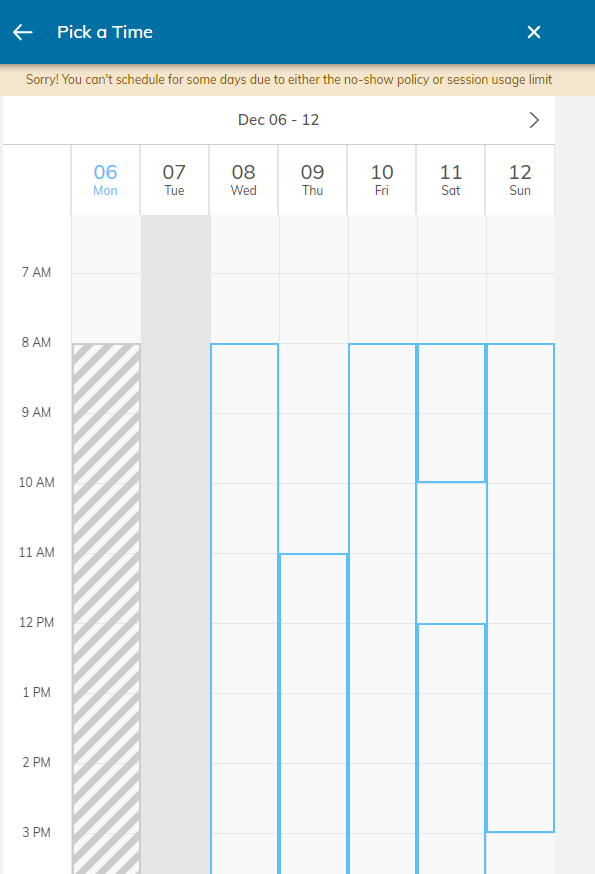
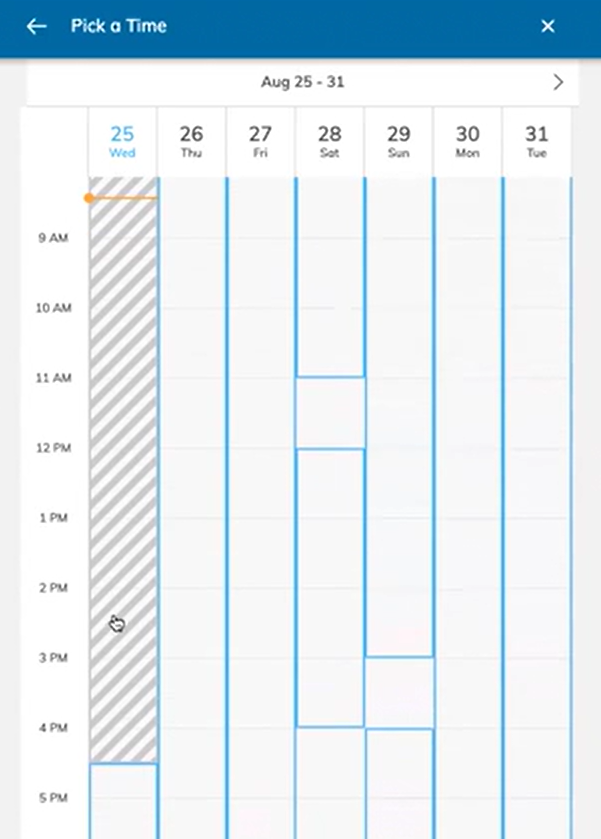
Appointment times will be greyed out based on lead times, session usage limits, and absences.
If an entire day or an entire week is solidly "greyed" out, you have either reached the session usage limits or violated the no-show policy. An error will pop up on the top of the corner stating this. An example is shown below.
If there are striped "greyed" out appointment times, this has to do with lead times. Certain communities require that you book an appointment X amount of time in the future (1 Day, a few hours, 30 minutes, etc.). If it is a tutoring emergency, please contact your program coordinator to set up an appointment within the lead time. The below example has an 8 hour lead time.
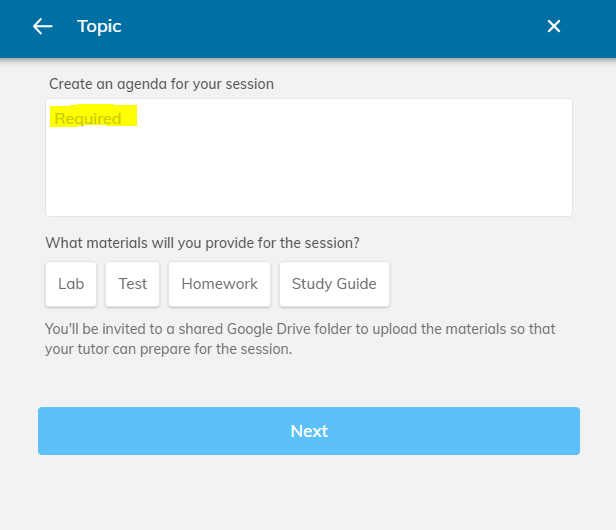
When I go to book an appointment, on the topic screen I get the error, "Please add at least three or more words to help your tutor prepare for the session.", what do I do?
There must be at least three words typed into the open-ended response (see the example below highlighted yellow). If there are only two words, the system will not allow you to book an appointment.
I want to change the tutor, date, location, or time of my session. How do I do that?
At this time, you cannot change any details once you have requested a session. The best course of action would be to cancel the session and rebook a new one.
- If it is within the community lead time, contact your program admin for help booking a new session
- If you would like to change your location, contact your program admin. Location is the only detail that can be changed once a session is requested.
Comments
0 comments
Please sign in to leave a comment.